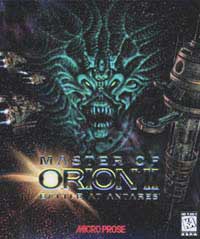
Master of Orion II - Battle at Antares

Moo2 Box

Lord Brazen's Game Review

Master of Orion II: Battle at Antares is an epic turn-based fantasy strategy game which was first released way back in 1997. For those that enjoy games that are focused on tactics, strategy, and diplomacy, Master of Orion II is a good place to start.

Whether in the thick of battle or viewing a cut scene, the visuals were pretty impressive for its day. The 640x480 screen resolution is a little limited by today`s standards, but the implementation works well and it gives plenty of life to this classic series.

The basic premises of the game are to create an empire, develop technology, and eventually build an invasion fleet against rivals who are seeking to do the same.

Master of Orion II offers game play against up to 7 opponents. The game has excellent multiplayer support with hot seat, modem, serial link, and LAN games. You can choose any combination of human or AI opponents.

There are thirteen standard races to choose from but most veteran players design a custom race. There is a large array of race customization options available allowing players to customize their race to match their playing style.... FULL REVIEW


March 11, 2007

DOSBox 0.70 is now available.

A new release of DOSBox is out. It offers improved performance over the previous release. The new auto CPU core really works well with Moo2.

Here is my dosbox.conf file. The highlighted items are the ones I changed for performance and sound.


[sdl]
fullscreen=false
fulldouble=false
fullresolution=original
windowresolution=original
output=overlay
autolock=true
sensitivity=100
waitonerror=true
priority=higher,normal
mapperfile=mapper.txt

[dosbox]
language=
machine=vga
captures=capture
memsize=16

[render]
frameskip=0
aspect=false
scaler=scan2x

[cpu]
core=auto
cycles=auto
cycleup=500
cycledown=20
timesynched=false

[mixer]
nosound=false
rate=22050
blocksize=2048
prebuffer=10

[midi]
mpu401=intelligent
device=default
mt32rate=22050
config=

[sblaster]
sbtype=sb16
sbbase=220
irq=7
dma=1
hdma=5

mixer=true
oplmode=auto
oplrate=22050

[gus]
gus=false
gusrate=22050
gusbase=240
irq1=5
irq2=5
dma1=3
dma2=3
ultradir=C:\ULTRASND

[speaker]
pcspeaker=true
pcrate=22050
tandy=auto
tandyrate=22050
disney=true

[joystick]
joysticktype=none
timed=true
autofire=false
swap34=false
buttonwrap=true

[serial]
serial1=dummy
serial2=dummy
serial3=disabled
serial4=disabled

[dos]
xms=true
ems=true
umb=true
keyboardlayout=none

[ipx]
# ipx -- Enable ipx over UDP/IP emulation.

ipx=true

[autoexec]
# Lines in this section will be run at startup.

mount c c:\mps\orion2\
c:

February 11, 2007

Tuning DOSbox for Internet Gameplay

There are several performance optimized versions of DOSbox out there today. Many have been built with custom patches intended to improve performance and add new features. Most are built from the latest CVS of DOSbox. After experimenting with many, I have chosen one built by the author of the DOSBox Daum Cafe. I have used his builds on several computers without any troubles. At present there is a DOSBox 0.66rc1 build available on that site. Be sure to download the one without the debugger enabled (for best performance).

Why bother with a build from the latest CVS? Why not just use a 0.65 build? Well, there are many improvements that you may not want to ignore. The most important one is the new auto feature for the CPU core. I find it greatly improves performance. Also, there are several enhancements if your video card supports pixel shaders. I really noticed the difference over 0.65.

Once you download your choice of DOSbox builds, setup the game according to Sirons Moo2 on DOSbox instructions. Once the game is working, we will tune from there.

To start tuning DOSbox for best performance, you will need to edit the dosbox.conf file. I start by switching display output to use the video cards overlay and enabling pixel shaders. You do this by changing the following lines:

output=overlay
pixelshader=GS2x.fx

This in particular helps when you play the game in a window. I have noticed that it does not work with all video cards. You will need to experiment.

One of the most important settings are the setting for the CPU core. The new CVS builds support the auto core which is even better performance than dynamic core (Note: not all of the core options are available on non-windows OS platforms). To enable the auto core just change the following lines:

core=auto
cycles=auto
cycleup=500
cycledown=20
timesynched=false

Another thing you may need to do is adjust the frameskip parameter. This is only necessary on slower machines. Myself, I set it to 0 but values up to 8 have acceptable results with moo2. Setting the parameter to high can effect the games animations.

frameskip=0

Try different values. A place where the game animations will lag most noticeably is on the main screen where the credits are scroll up. This is a good place to judge how smooth the animations are going to be during a game.

Once you get the game graphics and animations running smoothly, you can worry about sound. Edit the dosbox.conf and look for the [mixer] section. In that section make sure that sound is not disabled (if true it is disabled):

nosound=false

Next, Adjust the sound blaster emulation settings in the [sblaster] section. Make sure it is all like this:

sbtype=sb16
sbbase=220
irq=7
dma=1
hdma=5
mixer=true
oplmode=auto
oplrate=22050

Finally, you need to start DOSbox and at the DOSbox command prompt, you need to run setsound.exe. This will take you to the Moo2 sound configuration.


Moo2 needs both digital audio configured and MIDI. Start by selecting choosing "Select and configure MIDI music driver" from main screen. Then, select "Creative Labs Sound Blaster 16" and "Attempt to configure automatically".

Back on the main screen, select "Select and configure digital audio driver". On the second screen choose "Creative Labs Sound Blaster 16 or AW32" and again "Attempt to configure automatically" on the next screen. Save and exit.

That should do it.

One thing I suggest is to clear the key mapping of ALT-F9. Accidentally pressing ALT-F9 (perhaps while pressing F9 to determine distances between stars) during a game will cause DOSbox instantly to close. In order to prevent this, Press CTRL-F1 to switch to the Keyboard Mapper screen. Click on the Shutdown box and then the Del box. You will notice the key mapping in the bottom left clear. Click Save and Exit to save the new key mapping.


Another thing I like to change is the key sequence to release the mouse cursor from the DOSbox window. Normally this is ALT-F10 however the ALT key activates the menu bar in DOSbox. Activating the menubar in DOSbox halts the game and can cause network packets to be dropped. Dropped network packets in a multiplayer game often results in the familiar "Unable to send" message. It is best to try not to hit the ALT key during the game at all.

In order to change the key sequence to release the mouse cursor, press CTRL-F1 and click on the Cap Mouse box. Click the Del Box to clear it. Now press the the key on your keyboard that you want to assign this function to. Personally, I like to map it to the END key. Click Save and Exit when done.

At this point, you should be ready to play some Moo2.

February 03, 2007

Site Update

Good news. Our community continues to grow. This site is growing in popularity (Google PR4 now) with over 120 unique visitors per day.

I have decided to give a little more attention to the site (rather than playing moo2 all day). This weekend, I have converted this sites blog template over to the new blogger style with widgets. I added a new sidebar and all articles has been re-published to accommodate the changes.

January 01, 2007

Lord Admiral Loknar

I have gathered a little more information about Lord Admiral Loknar (the leader you get after defeating the Guardian). Here are his stats:

Loknar the Last OrionLoknar
Starting Exp: 1000
Fighter Pilot* +45
Galactic Lore* +45
Helmsman* +45
Ordnance* +45
Weapons* +45
Free Techs: Graviton Beams, Nuclear Drive.


When you defeat the guardian and you have room for another leader, Loknar will join you. You will get Graviton Beams and Nuclear Drive (everyone already has Nuclear Drive). If you dont have room for him then you still will get his ship.

When you receive Loknars ship (you will get this even if you don't get Loknar), you will receive 4 Xenon Level Techs. Death ray will be one of them and there will be 3 others chosen at random from the list below:

Black Hole Generator
Damper Field
Particle Beam
Quantum Detonator
Relfection Field
Spacial Compressor
Xentronium Armor

It will try to choose technology that you do not already have.

October 07, 2006

50,000 visitor milestone

Today, our site had its 50,000th unique visitor (in under 20 months). Our MOO2 community is live and well.

Thank you all for visiting!

Copyright 2005-2007 Shawn Meunier